Create and review Oribi briefings
Use Oribi Briefings to run a prompt now or on a recurring schedule. Start from a predefined template or create a custom briefing for the sales, customer, store, product, or campaign information you want to review regularly.
Expected result
- Your briefing appears under Oribi Briefings with its schedule and current status.
- After a successful run, opening the briefing shows its latest summary.
- Recurring briefings keep their generated conversations together so you can move between newer and older runs.
Create and review a briefing in Console
- Open Oribi Briefings. If the standard Console navigation is active, select the Oribi icon beside the current business and click Briefings.
- Select Daily goals dashboard, Morning briefing, Weekly performance summary, Monthly member insights, or Daily inventory alert to start from a template. To write your own prompt, click Create Custom Briefing.
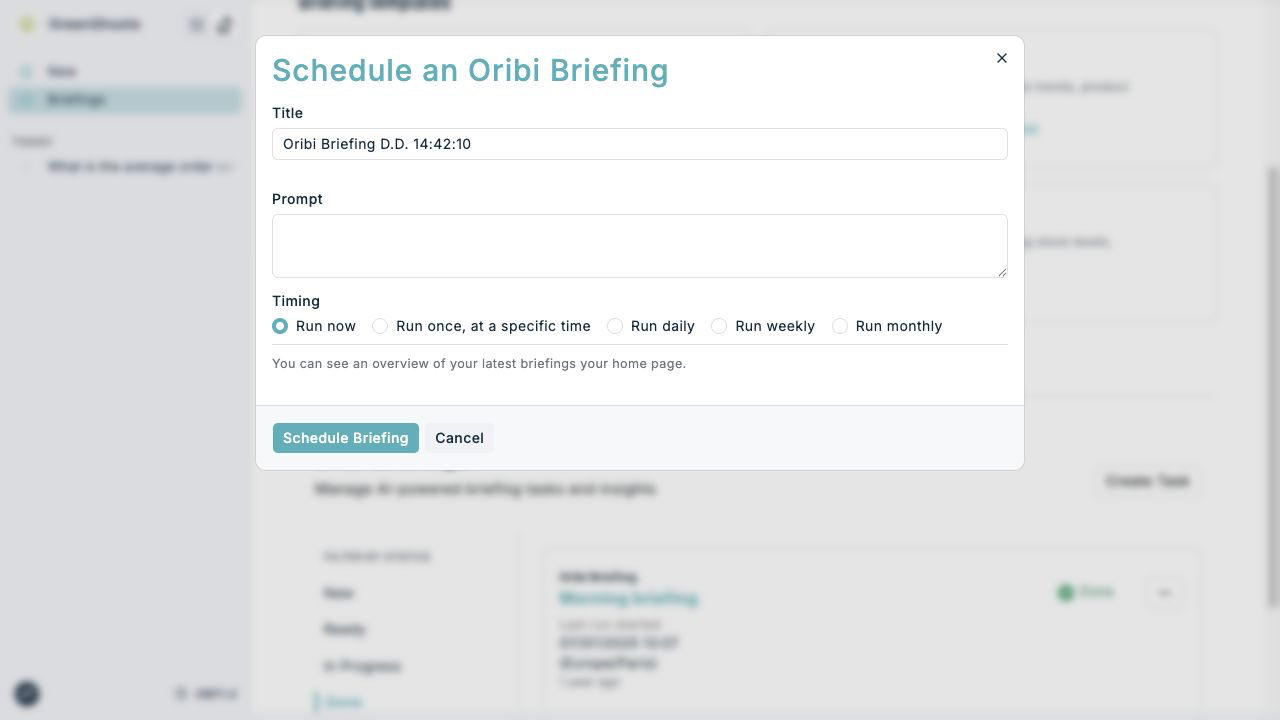
- In the scheduling dialog, enter a clear Title and review or write the Prompt.
- Under Timing, choose Run now, Run once, at a specific time, Run daily, Run weekly, or Run monthly.
- For a scheduled or recurring briefing, set Start date and time.
- Click Schedule Briefing.
- Find the briefing under Oribi Briefings. Use Filter by Status when you want to focus on briefings that are ready, in progress, completed, or need attention.
- Click the briefing title to read its summary. The most recent run opens first.
- If the briefing has run more than once, use Show newer briefing and Show older briefing, or scroll horizontally, to move between generated conversations.
- Open Actions to review the schedule, last run, creation date, and task ID. The same menu contains Edit briefing and Delete briefing.
The sidebar shows recent briefings that are still available. Deleting a briefing removes its sidebar shortcut; old generated conversations do not keep the shortcut active. An unfinished dashboard setup does not appear as a separate conversation in the sidebar.
Read the summary and check its coverage
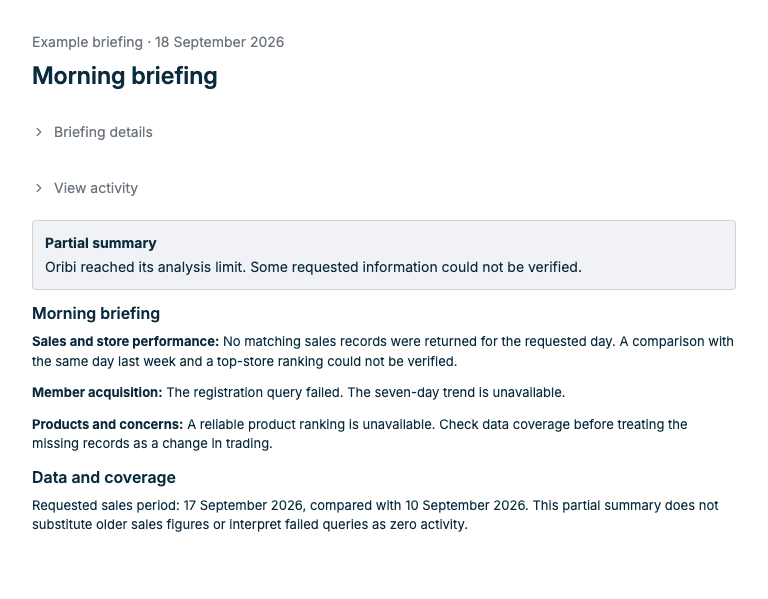
While a run is in progress, the page shows Generating briefing… and checks for its completed summary. The final summary is shown by default. Click Briefing details to review the original instruction, or View activity to inspect Oribi's progress messages. Charts and tables stay visible with the summary. Check the dates and any Data and coverage notes before using the findings.
If Oribi reaches its analysis limit, it attempts to summarise the evidence it already gathered. A Partial summary identifies a run that did not finish. The summary states which requested figures are missing or could not be verified. If a reliable summary cannot be produced, the run shows Analysis incomplete. Older runs that reached the limit retain their original error message.
If a briefing needs an answer or approval, its question or action remains visible. Click Continue conversation to provide the required input.
If something looks different
To set up a goal-led daily briefing directly from Home, follow Create your Oribi home dashboard. Saving a new Home dashboard starts its first generation automatically; later runs follow its daily schedule. Home also offers Dashboard settings → Generate now to generate a dashboard with the selected briefing’s saved prompt and your signed-in account, without changing its daily schedule or sending an email.
- If a new briefing says No conversations generated yet, wait for its first run to complete and then reopen the briefing.
- If the briefing has Done (errors) status, review the task result before relying on its output. Check that the prompt asks for data available to your business and try a narrower prompt if needed.
- If you cannot see Briefings, ask a super user to enable Oribi in General settings and grant your Oribi permission in Manage team members, then refresh Console.
- Scheduled times use the reporting timezone shown at the bottom of the Console navigation.